Free · Private · No Uploads to Server
Images, Optimized
Instantly.
Convert, compress, and resize images in any format — right in your browser. Your files never leave your device.
Drop images to optimize
Drag & drop or click to browse — batches welcome
PNG
JPG
WEBP
AVIF
HEIC
TIFF
BMP
GIF
SVG
Batch limit reached
Download or clear your current 20 images to upload more.
Convert to
WebP
Output Format
Max width
px
Quality
80%
0 images
Original —
Optimized —
— saved
Results
0
Before & After Comparison
Original
![Original]()
—
Optimized
![Optimized]()
—
0
Files Processed
0 KB
Space Saved
9
Output Formats
Convert an image in 4 Simple Steps
Our online image conversion tool makes it easy to convert multiple image files at once with just a few clicks. Select from hundreds of conversion options to customize your images to your exact preferences.
Step 1

Upload Your File
Easily upload your any files by clicking the ‘Select Files’ button, or simply drag and drop your image(s) into the designated area.
Step 2

Click ‘Start Conversion’ to Process All Files
After uploading your files, simply click ‘Start Conversion’ on the right to begin the conversion process for all files.
Step 3

Download Your Files
When the conversion is complete, you can download all the files together or select individual ones.
Step 4

Modify Your Converted Images
Finally, enhance your converted images with our easy-to-use photo editing tools. Crop, resize, remove backgrounds, add text, and much more to customize your images to your needs.
9 Smart Conversion Options , Built for Real Work
Access 9 essential conversion formats in one place.
From lightweight web formats to high quality images, our tool ensures fast processing and clean results every time.
Designed to simplify your workflow so you can focus on what matters.

PNG to JPG
HEIC to PNG
PNG to JPEG
AVIF to PNG
PNG to SVG
PNG to GIF
PNG to TIFF
PNG to AVIF
PNG to JPG
HEIC to PNG
PNG to JPEG
AVIF to PNG
PNG to SVG
PNG to GIF
PNG to TIFF
PNG to AVIF
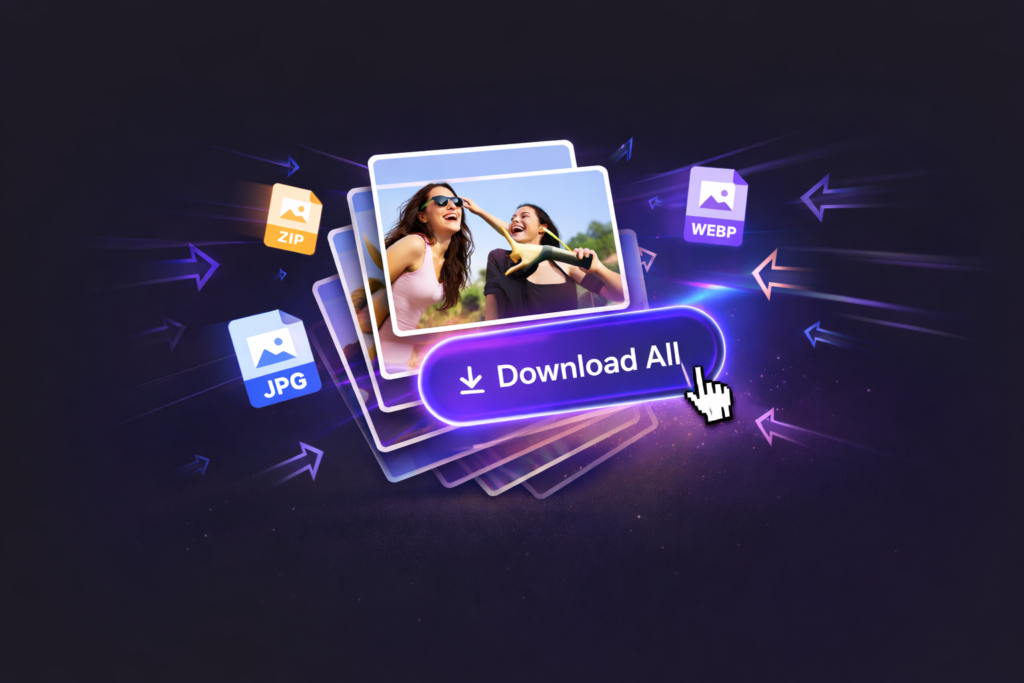
Save time with powerful batch downloads.
No more downloading images one by one. With our bulk download feature, you can instantly download up to 20 optimized images at once fast, simple, and efficient.
Perfect for designers, developers, and content creators who need speed without compromising quality.
- Faster workflow, less waiting
- Perfect for bulk projects
- Optimized files, ready to use
Frequently Ask Question

To convert from PNG to WEBP, click the ‘Choose Files’ button or drag and drop your image(s) into the upload area. After uploading, click on ‘Start Conversion’ to convert the PNG files to WEBP format. Once the conversion is complete, download your newly converted WEBP images by clicking the download button next to each file.
Our tool allows you to bulk convert PNG to WEBP in just a few clicks. Simply upload multiple PNG files at once by clicking the ‘Choose Files’ button, select ‘Start Conversion’, and let the tool process all files in batch. Once done, you can download them all at once or individually.
Our PNG to WEBP converter is the fastest, most efficient tool online. With high-quality conversion, no file size limits, and batch processing, you can convert PNG to WEBP images instantly without compromising image quality. It’s the go-to choice for professionals and anyone needing seamless image conversion.
Our tool focuses on converting image formats, not editing them. However, once your image is converted to WEBP, you can edit it using any image editing software (like Photoshop or GIMP) that supports the WEBP format.
Yes! Your files are completely safe and private. We don’t store your images on our servers, and all conversions happen directly in your browser. Your files never leave your device, ensuring 100% privacy and security throughout the process.
To convert PNG to WEBP without compromising on quality, upload your image and set the image quality to 100 under the settings tab before starting the conversion. This will retain the original quality of your PNG images while converting them to the more efficient WEBP format.
Yes! Our tool supports batch image conversion, allowing you to convert multiple PNG files to WEBP in one go. Just upload all the files at once, hit ‘Start Conversion’, and download your converted files together or separately.
Far far away, behind the word mountains, far from the countries Vokalia and Consonantia, there live the blind texts. Separated they live in Bookmarksgrove right at the coast
Far far away, behind the word mountains, far from the countries Vokalia and Consonantia, there live the blind texts. Separated they live in Bookmarksgrove right at the coast
Far far away, behind the word mountains, far from the countries Vokalia and Consonantia, there live the blind texts. Separated they live in Bookmarksgrove right at the coast
Far far away, behind the word mountains, far from the countries Vokalia and Consonantia, there live the blind texts. Separated they live in Bookmarksgrove right at the coast
Far far away, behind the word mountains, far from the countries Vokalia and Consonantia, there live the blind texts. Separated they live in Bookmarksgrove right at the coast
Far far away, behind the word mountains, far from the countries Vokalia and Consonantia, there live the blind texts. Separated they live in Bookmarksgrove right at the coast
Far far away, behind the word mountains, far from the countries Vokalia and Consonantia, there live the blind texts. Separated they live in Bookmarksgrove right at the coast
Far far away, behind the word mountains, far from the countries Vokalia and Consonantia, there live the blind texts. Separated they live in Bookmarksgrove right at the coast

Free online image converter for PNG, JPG, WEBP, AVIF, and HEIC convert, optimize, and download multiple images quickly with no loss in quality.
Copyright © 2026 Tiny Optimize, All rights reserved.